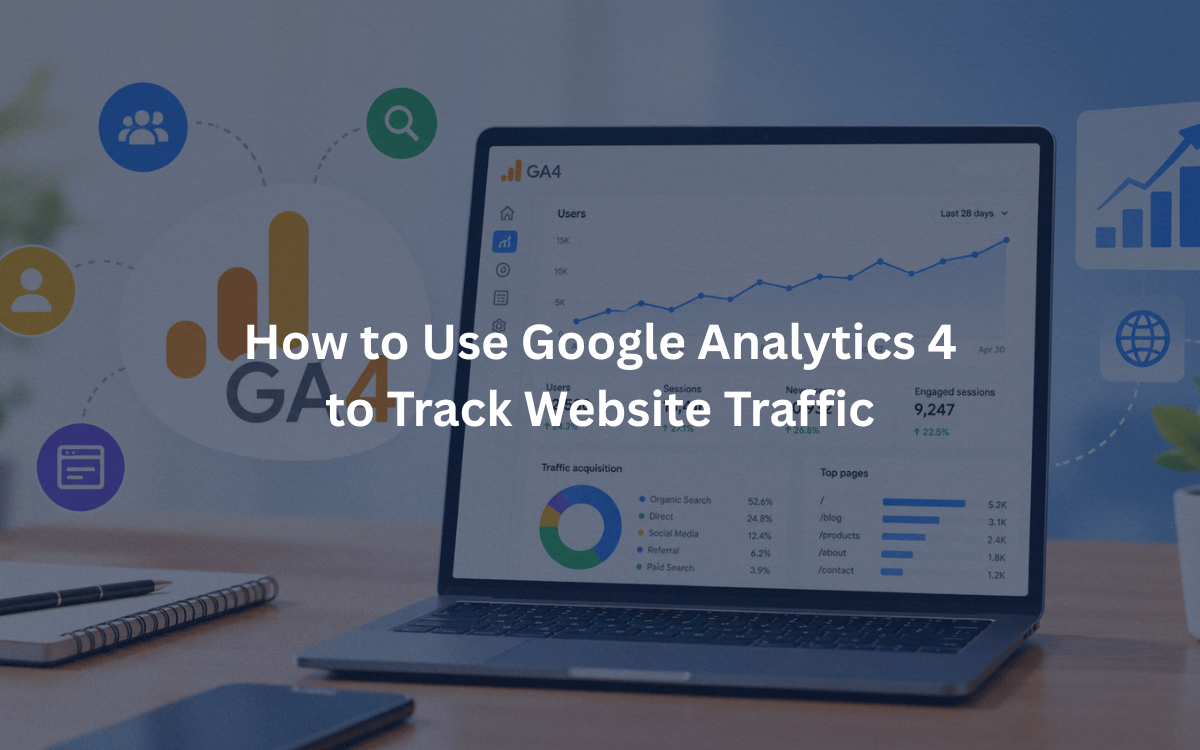
Running a website without checking your analytics is a bit like driving with your eyes closed. You might be moving forward, but you have no idea if you’re heading in the right direction. Google Analytics 4, commonly known as GA4, is the tool that tells you exactly who’s visiting your site, where they’re coming from, what they’re doing once they arrive, and whether they’re taking the actions that matter to your business. If you’ve heard of GA4 but haven’t quite figured out how to use it properly, this guide breaks it down step by step.
Why GA4 is Different from What Came Before
Google rolled out GA4 as a complete replacement for Universal Analytics, and the shift wasn’t just cosmetic. The old system was built around sessions and pageviews, treating every visit as a somewhat isolated event. GA4 works differently. It uses an event-based model, meaning nearly everything a visitor does on your side scrolling, clicking a button, watching a video, filling out a form gets logged as an event. This gives you a much richer, more accurate picture of the actual user journey rather than just a count of how many times a page was loaded.
It also means GA4 tracks users across devices and platforms more effectively, which matters a lot now that people frequently start browsing on their phone and finish on a laptop.
Getting Started: Setting Up Your Property
The first step is creating your GA4 property, which is straightforward:
- Head to analytics.google.com and log in with your Google account.
- Click “Admin” in the lower left corner and select “Create Property.”
- Fill in your business details name, time zone, and currency.
- Select “Web” as your platform and enter your website’s URL.
- GA4 will generate a Measurement ID, which looks something like G-XXXXXXX.
That ID needs to be added to your website so GA4 can start collecting data. You can either paste the tracking code directly into your site’s header, or use Google Tag Manager to manage it, which tends to be easier to maintain long-term, especially if you plan to add more tracking events later.
Confirming Your Setup Actually Works
Once the code is installed, don’t just assume it’s working check it. Open the “Realtime” report in GA4 and visit your website from another browser tab or a different device. If your activity shows up within a minute or two, you’re good to go. Skipping this step is a common mistake, and it’s not unusual for people to realize months later that their tracking code was never firing correctly, leaving them with a blank data history.
Making Sense of the Main Reports
The GA4 interface looks quite different from the old version, and it can feel a little disorienting at first. Here’s a rundown of the reports you’ll rely on most:
Acquisition shows where your traffic originates organic search, paid ads, social platforms, email campaigns, or direct visits. This is where you find out whether your SEO efforts, your ad spend, or your social posts are pulling their weight.
Engagement dives into how users behave once they’re on your site. You’ll see which pages hold attention the longest, how many events each session generates, and your average engagement time. This is far more useful than the old “bounce rate” metric, since it captures actual interaction rather than just whether someone left after one page.
Retention tells you how many visitors come back over days, weeks, or months. A site that constantly attracts new visitors but never sees them return might have a content or product problem worth investigating.
Monetization becomes relevant if you sell products online, tracking purchases, revenue, and which products are performing best.
Tracking the Actions That Actually Matter
Pageviews and sessions only tell part of the story. What you really want to know is whether people are doing the things that matter to your business by submitting a contact form, clicking “Call Now,” signing up for a newsletter, or completing a purchase.
To track these, go to Admin > Events. GA4 automatically captures some events on its own, but you can also create custom ones tailored to your site. Once you’ve identified the events that represent real business value, mark them as conversions. From that point on, GA4 gives you a dedicated, easy-to-read report showing exactly how many people completed each goal, rather than making you dig through raw event logs every time you want an answer.
Linking GA4 With Search Console
If organic search traffic matters to you, connecting GA4 with Google Search Console is worth doing early on. This integration lets you see the actual search queries bringing visitors to your site, right alongside behavioral data like time on page and engagement rate. It’s a quick setup, but it becomes genuinely useful once you start comparing which search terms bring in visitors who stick around versus those who bounce immediately. Ranking for a keyword is only half the win keeping that visitor engaged is the other half.
Going Beyond the Basics: Explorations
Once you’re comfortable navigating the standard reports, GA4’s “Explore” section opens a lot more flexibility. You can build funnel explorations to pinpoint exactly where users abandon a signup or checkout process, path explorations to visualize the literal click-by-click journey someone takes through your site, and segment comparisons to see how different groups say, mobile users versus desktop users, or new visitors versus returning ones behave differently.
This is really where GA4 shifts from being a simple traffic counter to becoming an actual decision-making tool. Instead of just knowing how many people showed up, you start understanding the “why” behind their behavior, which is far more useful for improving your site or campaigns.
Turning Data into Decisions
None of these matters if the data just sits there unused. The whole point of setting up GA4 properly is to inform real decisions doubling down on channels that bring engaged, converting visitors, fixing pages with high drop-off rates, and pulling back on efforts that clearly aren’t delivering results. Check your reports regularly, not just when something feels off. Small, consistent reviews tend to catch problems and opportunities much earlier than an occasional deep dive.
Wrapping Up
GA4 does take some getting used to, especially if you’re coming from the older Universal Analytics interface. But once the event-based structure clicks, it becomes one of the most valuable free tools available for understanding how your website performs. Start with the basics, set up your property, confirm your tracking work, and get familiar with the core reports. From there, gradually layer in custom events, conversions, and explorations as you get more comfortable. The clearer picture you get of your visitors’ behavior, the smarter your marketing decisions become.